01
Download the MI8OS app
Scan. Download. Go.
Scan the QR code on your insert, or open app.mi8os.com on your phone. On an iPhone it takes you straight to the App Store.
Get the appYour MI8OS card set
Your secrets live encrypted on the cards in your hand, not in a cloud. This guide takes you from a blank card to your first saved vault in about five minutes.
Start the guide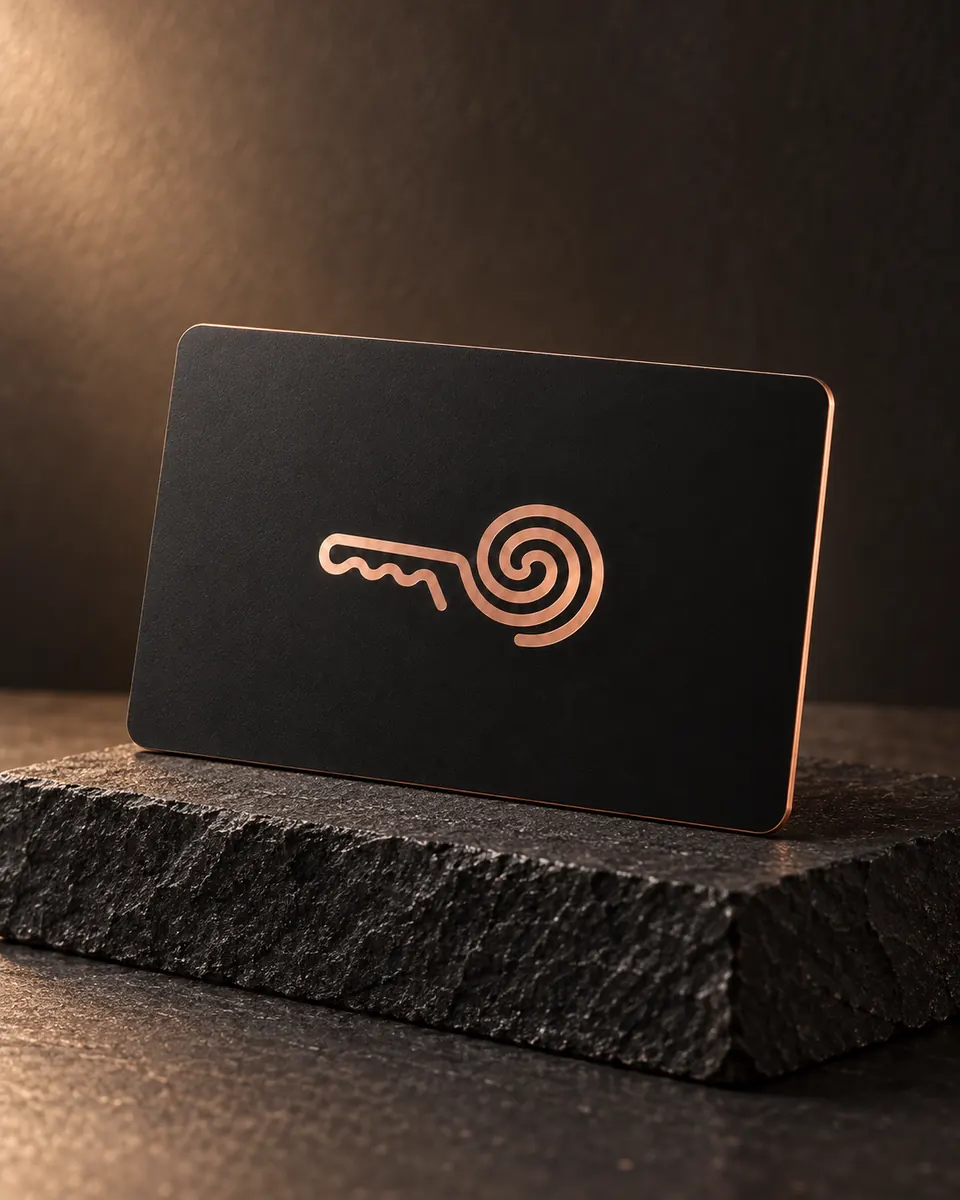
What you need
Your MI8OS card set
Download the MI8OS app
Scan the QR code on your insert, or open app.mi8os.com on your phone. On an iPhone it takes you straight to the App Store.
Get the appCreate your vault
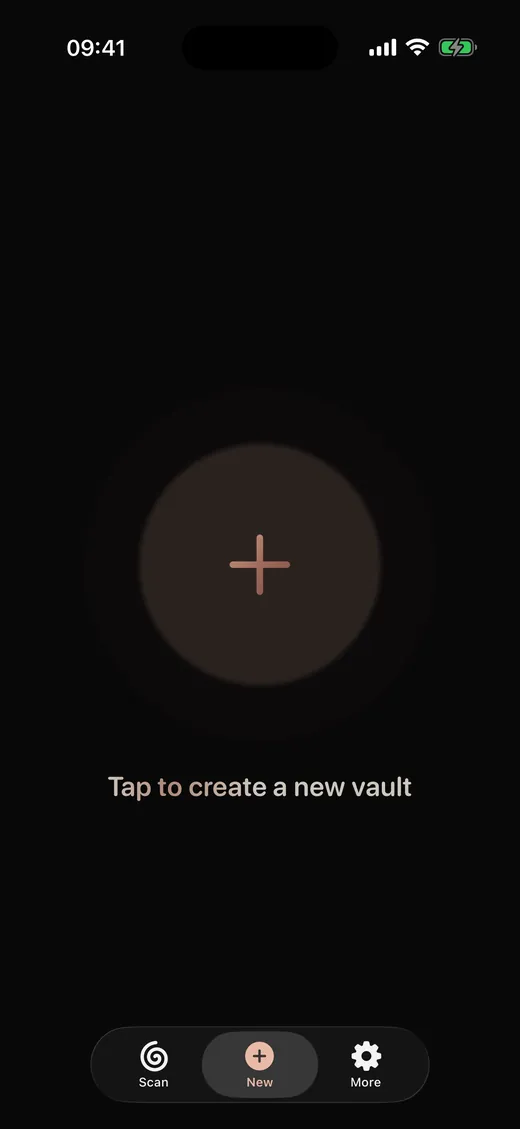
Open the app, tap New, then tap the plus in the middle. Use Add Secret for everything you want to keep: a PIN, a Wi-Fi password, recovery codes, seed words. When your list is ready, tap Continue.
TipYou can add and remove secrets anytime later.
Encrypt your card
Type your Vault Password twice and tap Encrypt Vault. It is the only password you need to remember, and it is never stored on the card or in the app.
ImportantNobody can recover a forgotten Vault Password, not even MI8OS. Use several unrelated words, and keep a copy somewhere safe.
Save to your cards
Tap Save to Card and hold the card flat against the top edge of your iPhone. Keep it still until the app confirms. MI8OS writes your encrypted vault and reads it back to check it.
TipThen tap Write Another Card and repeat with your next card, so you have a backup. Keep it in a different place.
Once your vault is on a card, this is all you need.
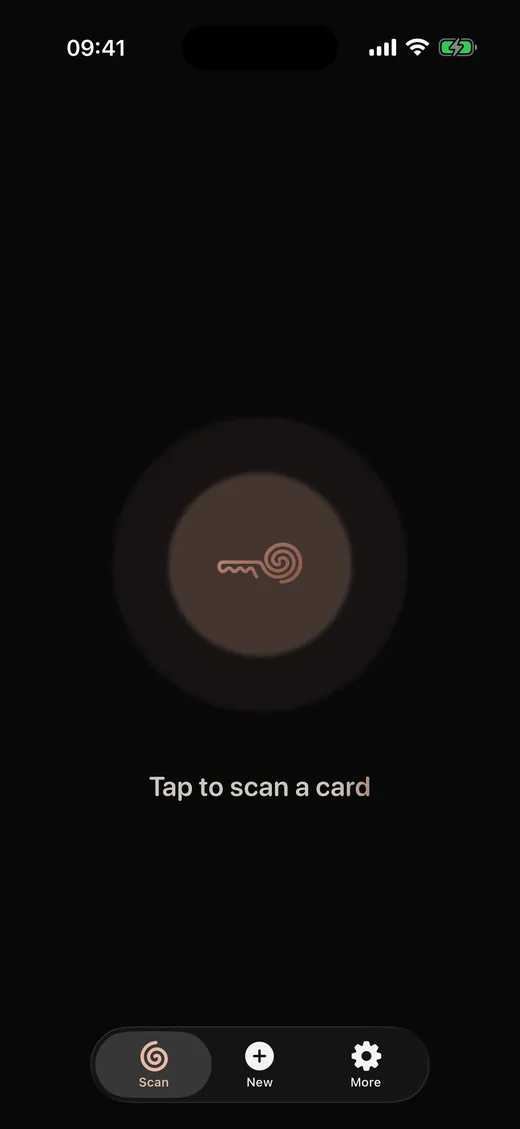
Tap Scan and hold the card to your phone. Enter its Vault Password, then hold the card once more. Your secrets open in memory only.
Tap a secret to see it. Copy puts it on the clipboard, and MI8OS clears it again after 30 seconds by default.
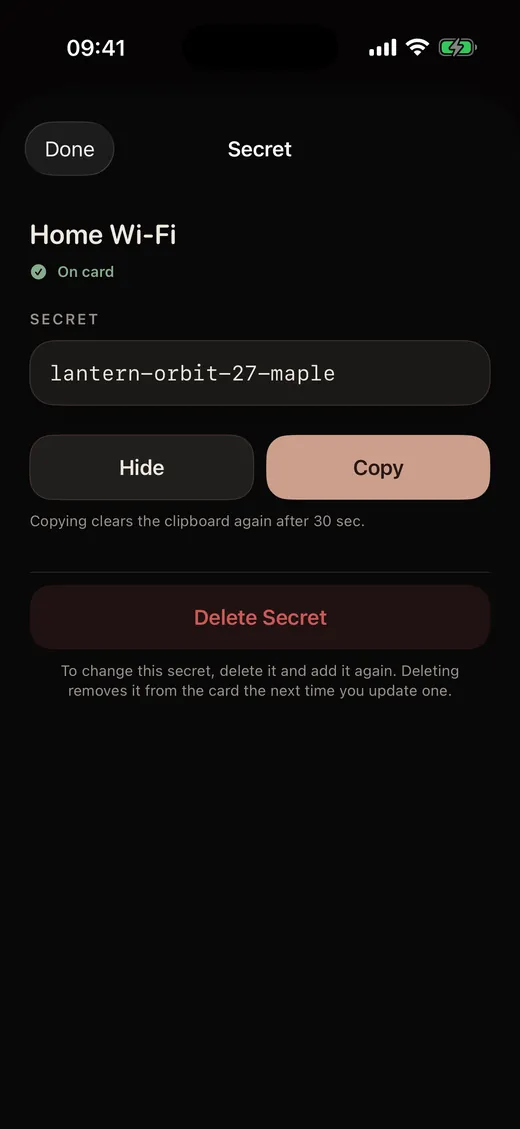
Add and delete secrets as you like, then tap Update Card and hold the card again. To change a secret, delete it and add it again.
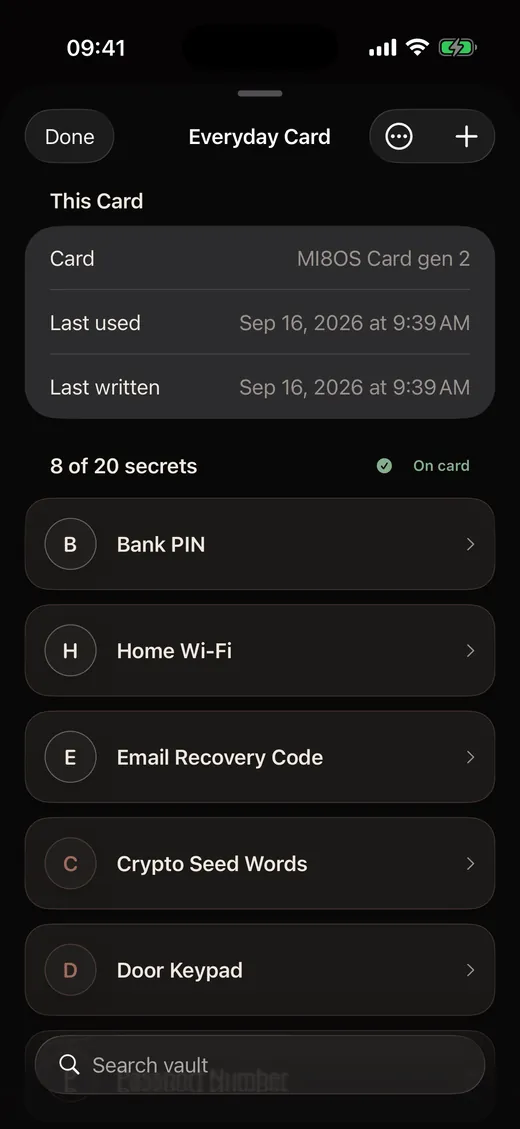
Tap Done to close the card. The decrypted vault leaves your phone's memory, and nothing readable stays behind.
A few habits keep your secrets safe and within reach for years.
Maintain two or three current cards and store them in separate places. Update each backup after important vault changes.
Use a password you can reliably recover from your own secure plan. MI8OS cannot reset it, and a card cannot reveal it.
If one card becomes unreliable, open a current card and write an additional replacement before you lose access to the remaining copies.
If every usable card is lost, or every Vault Password is forgotten, MI8OS cannot restore the vault in this version.
MI8OS uses Argon2id with a unique random salt to turn your password into a 256-bit encryption key. This makes password guessing deliberately expensive, but a long, unique passphrase is still essential.
The vault is protected with ChaCha20-Poly1305. It both hides the contents and detects changes to the encrypted vault or its protected metadata.
The Vault Password is used to derive the key and is not stored on the card or by MI8OS. The decrypted vault and active key are released when the session closes.
Against the back of your iPhone, near the top edge where the camera is. Hold it flat and still. Thick or metal cases can block the signal.
No. There is no account, cloud sync, analytics or tracking. Your vault lives on your cards only.
Open one of your other cards and write a replacement. Whoever finds the lost card sees only encrypted data without your Vault Password.
It cannot be recovered. You can reset the card and use it again, but the secrets on it are gone. That is why backups and your own safe plan matter.
It is coming soon. Until then, app.mi8os.com has the latest news.
The app shows it for every card, for example “8 of 20 secrets”. When a card is full, delete a secret or use another card.
Open app.mi8os.com on your phone, or scan the QR code on your insert.
 app.mi8os.com